Showing posts with label Computer Tips. Show all posts

Saturday, January 2, 2016

Turn off auto start video on facebook


  1. From the top right of Facebook Click  and select Setting
  2. Click Videos in the left menu
  3. Click the Drop down menu next to auto-play Videos and select OFF 


Friday, September 25, 2015

How To Check Your System Complete Information Step by Step in Urdu

.اسلام و علیکم دوستوں
اس ویڈیو میں میں آپ کو بتاوں گا کہ آپ اپنے کمپیوٹر کا ماڈل ، ریم، مدربورڈ، ھارڈ ڈیسک 
اور پروسیسر کونسا ہے؟؟؟


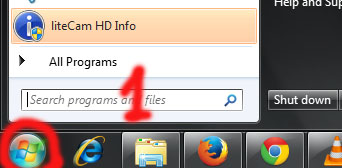
  آپ سٹارٹ کے بٹن پہ کلک کریں


 آل پروگرام پہ کلک کریں 

اکسیسریز پہ کلک کریں 


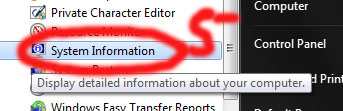
اور سسٹم ٹول پہ جا کہ سسٹم انفارمیشن پہ کلک کریں


آپ دیکھ سکتے ہیں اپ کے کمپیوٹر کی ساری انفارمیشن آپ کے سامنے ہے۔


مزید معلومات کیلئے یہ ویڈیو دیکھیں 


Tuesday, May 13, 2014

Facebook Shortcuts

Facebook is the most used social networking website by many internet users. Everyone knows Facebook, but not everyone knows Facebook very well. We can use Facebook more effectively if we know these very useful shortcuts as well as tips and tricks. Everyone wants to use some shortcuts to post status and comments with unique features. Facebook tricks will help you take charge of your Facebook activity. These tricks and tools will give help take your Facebook experience to the next level.

Here are some Facebook tricks and shortcuts for Google Chrome, Firefox and Internet Explorer

FACEBOOK SHORTCUTS FOR GOOGLE CHROME:
ALT + 1 --- View your news feed
ALT + 2 --- View your own profile

Facebook Shortcuts
ALT + 3 --- View pop-up of friend requests
ALT + 4 --- View pop-up of messages
ALT + 5 --- View pop-up of notifications
ALT + 6 --- View account setting
ALT + 7 --- View privacy setting
ALT + 8 --- View Facebook’s own profile
ALT + 9 --- Read latest terms of service agreement
ALT +? --- Search
ALT + m --- Compose a new message


FACEBOOK SHORTCUTS FOR FIREFOX:
SHIFT + ALT + 1 --- View your news feed
SHIFT + ALT + 2 --- View your own profile
SHIFT + ALT + 3 --- View pop-up of friend requests
SHIFT + ALT + 4 --- View pop-up of messages
SHIFT + ALT + 5 --- View pop-up of notifications
SHIFT + ALT + 6 --- View account setting
SHIFT + ALT + 7 --- View privacy setting
SHIFT + ALT + 8 --- View Facebook’s own profile
SHIFT + ALT + 9 --- Read latest terms of service agreement
SHIFT + ALT + 0 --- Open Facebook help center
SHIFT + ALT +? --- Search
SHIFT + ALT + m --- Compose a new message


Sunday, April 6, 2014

How to schedule a post on facebook to appear on my page later?

If you are thinking how to schedule posts on facebook you are in the right place. Please just follow the steps carefully and you will make it!

The first thing you have to do is to log in to your facebook accout and go to your page you want to schedule post on it. Than type your post or upload a photo or maybe a video or whatever you want and in the left bottom corner of the box you're typing that post you see a little icon like a timer! See the photo below.

Choose the date and the time when do you want your post to be posted and hit SCHEDULE!
After you hit SCHEDULE you will see an info message like this in photo below:

You're done, you just have to wait until the your schedule will be executed and you will have it posted on page!


Friday, April 4, 2014

How to Invite all your facebook friends to like your page? (Step by Step)

If you're wondering how to invite all your facebook friends to like your fan page on facebook than you just have to follow the steps below and learn it. First of all you must be logged in to your facebook profile.


1. Go to the page you want to get more likes.
2. Click Build Audience and then Invite Friends.


3. Once a new window is opened in the drop-down click Search All Friends! 


4. Scroll down to load all friends. (Make sure all friends are loaded properly).


5. Press CTRL + SHIFT + J to open Chrome Console!
Then copy and paste this code below:

var inputs = document.getElementsByClassName('uiButton _1sm');  
for(var i=0; i<inputs.length;i++) {  
    inputs[i].click();  


6. After you paste the code press ENTER and wait for the invitations to finish! 

Saturday, February 15, 2014

Top 15 Search Engines In World

1 | Google


2 | Bing
           

 3 | Yahoo! Search
           

 4 | Ask


5 | Aol Search
                

 6 | MyWebSearch
                

 7 | WebCrawler
               

 8 | Wow


 9 | Infospace


 10 | Blekko


 11 | Dogpile


12 | Alhea
          

 13 | DuckDuckGo
          

14 | Info
          

 15 | Contenko


Top 15 Social Networking Websites in World


Hello Now I Have Refresh All Articles On This Blog Because Our Readers Tell Us To Chang Our Blog Fully...! So In This Article We Will Talking About Top 15 Social Networking Websites in World As You All Know Now a Days Every One Attract To Internet And Internet Is A Super Cool Thing For World Because You are Free On Internet You Can Do Any Thing With Internet, But This Article Is On Top 15 Social Networking Websites in World So Lets See Who On Top List Below :)

How To Download Facebook Videos

Hi Friends ....and Facebook Users I Have A Awesome Trick For You All.........!Must Read Below....


While watching videos on Facebook Sometime you like certain video and want to download it on your computer but you are taken a step back because you don't know how to Download A Video From Facebook..! Downloading videos from Facebook is something you are not familiar with it..! Downloading Facebook videos is very very easy and the best thing about  it is that it does not require any software. In this Article i will Try To Teach You, How to download videos from Facebook in few simple steps. See Below....!
How To Download Facebook Videos.

  • 1. Open the Facebook video you want to download in Your Computer
  • 2. Copy the URL Of Video.
  • 3. Go to save from By  Clicking Here
  • 4. Paste URL copied in Step 2 in input area Of Save From Website Then Click On Download Button
  • 5. After Clicking on Download Button, Available Video format for the video will Appear on Right Side, You Have Choices For Your Video Select MP4 For HD Video Any Other For Other Formats As You Like..!
  •  6. Downloading Will Start Automatically Just Wait For Some Seconds...! :)
Follow pic
1st >>> copy the video link

2 nd >>> open link in new tab CLICK HERE


 3 rd >>> past the link here and click download


Thursday, January 30, 2014

Chrome shortcuts Keys

Keyboard shortcutsKeyboard shortcuts are combinations of keyboard strokes and clicks that you can use to perform specific actions, such as taking a screenshot. Knowing some of the shortcuts listed below can help save you time.

You can also press Ctrl+Alt+? whenever you're signed in on your Chromebook to see a map of these shortcuts directly on the screen

Tabs and windows

Ctrl+N Open a new window
Ctrl+Shift+N Open a new window in incognito mode
Ctrl+T Open a new tab
Ctrl+O Open a file in the browser
Ctrl+Shift+Q (twice) Sign out of your Google Account on Chrome OS
Ctrl+W Close the current tab
Ctrl+Shift+W Close the current window
Ctrl+Shift+T Reopen the last tab you've closed. Google Chrome remembers the last 10 tabs you've closed.
Ctrl+1 through Ctrl+8 Go to the tab at the specified position in the window
Ctrl+9 Go to the last tab in the window
Alt+1 through Alt+8 Go to the window at the specified position
Alt+9 Go to the last window open
Ctrl+Tab Go to the next tab in the window
Ctrl+Shift+Tab Go to the previous tab in the window
Alt+Tab Go to the next window you have open
Alt+Shift+Tab Go to the previous window you have open
Click and hold the Back or Forward arrow in the browser toolbar See your browsing history for the tab
Backspace, or press Alt and the left arrow Go to previous page in your browsing history.
Shift+Backspace, or press Alt and the right arrow Go to the next page in your browsing history.
Press Ctrl and click a link Open the link in a new tab in the background
Press Ctrl+Shift and click a link Open the link in a new tab and switch to the newly opened tab
Press Shift and click a link Open the link in a new window
Drag a link to a tab Open the link in the tab
Drag a link to a blank area on the tab strip Open the link in a new tab
Type a URL in the address bar, then press Alt+Enter Open the URL in a new tab
Press Esc while dragging a tab Return the tab to its original position
Ctrl+Shift+L Locks your screen

Page shortcuts

Press Alt and up arrow Page up
Press Alt and down arrow Page down
Space bar Scroll down the web page
Press Ctrl+Alt and up arrow Home
Press Ctrl+Alt and down arrow End
Ctrl+P Print your current page
Ctrl+S Save your current page
Ctrl+R Reload your current page
Ctrl+Shift+R Reload your current page without using cached content
Ctrl and + Zoom in on the page
Ctrl and -  Zoom out on the page
Ctrl+0 Reset zoom level
Esc Stop the loading of your current page
Ctrl+D Save your current webpage as a bookmark
Ctrl+Shift+D Save all open pages in your current window as bookmarks in a new folder
Drag a link to bookmarks bar Save the link as a bookmark
Ctrl+F Open the find bar to search your current page
Ctrl+G or Enter Go to the next match for your input in the find bar
Ctrl+Shift+G or Shift+Enter Go to the previous match for your input in the find bar
Ctrl+K or Ctrl+E Perform a search. Type a search term after the question mark in the address bar and press Enter.
Ctrl+Enter Add www. and .com to your input in the address bar and open the resulting URL
Ctrl+ window switcher key Take a screenshot of your current page
Ctrl+ Shift+ window switcher key Take a partial screenshot
Ctrl+U View page source
Ctrl+Shift+I Toggle the display of the Developer Tools panel
Ctrl+Shift+J Toggle the display of the DOM Inspector

Browser settings

Ctrl+Shift+B Toggle the display of the bookmarks bar. Bookmarks appear on the New Tab page if the bar is hidden.
Alt+Shift+M Open the Files app
Ctrl+. Display hidden files in the Files app
Ctrl+H Open the History page
Ctrl+J Open the Downloads page
Shift+Esc Open the Task Manager
Ctrl+Alt+/ Open the list of available keyboard shortcuts
Ctrl+? Go to the Help Center
Ctrl+maximize key Configure monitor display
Shift+Alt+S Opens the status area in the bottom-right corner of the screen.
Shift+Alt+L Place focus on the launcher
  • Press Tab or the right arrow to focus on the next item in the toolbar
  • Press Shift+Tab or the left arrow to focus on the previous item in the toolbar
  • Press Space or Enter to activate buttons, including page actions and browser actions
  • Press Shift + increase volume key to open the context menu for the button (if available).
  • Press Esc to return focus to the page
Ctrl + back button or Ctrl + forward button Pressing Ctrl and either the back or forward keys switches focus to the next keyboard-accessible pane. Panes include:
  • Status area containing the time, network icon, and battery icon in the bottom-right corner of the screen
  • Launcher
  • Address bar
  • Bookmarks bar (if visible)
  • The main web content (including any infobars)
  • Downloads bar (if visible)
Alt+Shift+B Place focus on the bookmarks bar. Use the actions listed for Shift+Alt+T to move the focus.
Alt+E or Alt+F Open the Chrome menu on the browser toolbar
Shift+Search+Volume Up Open right-click menus for focused items.
Ctrl+Alt+Z Enable or disable accessibility features if you're not signed in with a Google Account. If you're signed in, you can configure the accessibility feature on the Settings page.
Ctrl+Shift and + Increase screen scale
Ctrl+Shift and - Decrease screen scale
Ctrl+Shift and ) Reset screen scale
Ctrl+Shift and Refresh Rotate screen 90 degrees

Text editing

Ctrl+A Select everything on the page
Ctrl+L or Alt+D Select the content in the address bar
Press Ctrl+Shift and right arrow Select next word or letter
Press Shift+Search and right arrow Select text to the end of the line
Press Shift+Search and left arrow Select text to the beginning of the line
Press Ctrl+Shift and left arrow Select previous word or letter
Press Ctrl and right arrow Move to the end of the next word
Press Ctrl and left arrow Move to the start of the previous word
Press Alt and up arrow Page up
Press Alt and down arrow Page down
Press Ctrl+Alt and up arrow Home
Press Ctrl+Alt and down arrow End
Ctrl+C Copy selected content to the clipboard
Ctrl+V Paste content from the clipboard
Ctrl+Shift+V Paste content from the clipboard as plain text
Ctrl+X Cut
Ctrl+Backspace Delete the previous word
Alt+Backspace Delete the next letter (forward delete)
Ctrl+Z Undo your last action

Wednesday, January 29, 2014

How To Increase Laptop’s Battery Life

In the modern computing age. Modern graphic intensive operating systems and resource hungry applications are cutting down the life of your laptop's battery every day. The average battery life per continuous use still stands at a maximum of three to four hours. So, a fast depleting battery could very swiftly put the crutches on your 'mobile' road trip.
Falling just short of carrying an extra pack of batteries in the back-pack, are several ways to keep the juice flowing through the batteries. Below are the 20 ways to increase the laptop's battery life.


1. Regular defrag.

Regular defragmentation helps to arrange data more efficiently thus making the hard drive work less to access the data. The quicker the moving hard drive works lesser is the load placed on the battery. Thus, your batter can last longer.The effect is minimal, but this efficiency goes hand in glove with hard drive maintenance.
2. Kill the resource gobblers
End the background processes that are not vital. Monitor the resource usage through a"˜Ctrl-Alt-Del' which brings up the Windows Task Manager (in Windows). If you're not on the internet, it is safe to shut down the immediate non-essential programs running in the taskbar like the antivirus and the firewall. Weed out unnecessary programs running as start-ups by launching the System Configuration Utility from Run "" Msconfig "" Tab: Startup. Uncheck the programs which you don't want to launch and reboot the computer once.
3. Pause the scheduled tasks
It may be a defrag or a virus scan, but make sure it is scheduled for a time when you are near a power outlet. If not then nix them for the moment.
4. Unplug external devices
USB devices are the biggest drainers of battery power. Unplug all external devices like an external mouse, PC cards, Wi-Fi, external speakers, Bluetooth and even an attached iPod.
5. Empty the CD/DVD Drives
Even if you don't intend to use it, don't leave any CD/DVDs as leftovers in the drives. A spinning drive sucks battery power like a sponge.
6. Go local
Desist using the DVD/external drives while running on batteries. Shift the content to the hard drive or run using (free) virtual drives like Pismo File Mount or even Microsoft's Virtual CD ROM Control Panel.
7. Adjust the Screen Brightness
The LCD screen of a laptop is another huge power sink. Calibrate the brightness to the lowest level you can tolerate using the Function key toggles or using the Display Settings applet in the Control Panel.
8. Kill the sounds
Mute the speakers and try avoiding the use of multimedia software to maximize the battery life. Installed sound schemes also drain a battery perceptibly.
9. Rid the screensaver
To maximize battery life by a little, switch off the screensaver.
10. Visit Power Options
Get familiar with power management through the "˜Power Options' applet in the Control Panel. Both XP and Vista come with advanced power management features which shut off components like the monitor and/or the hard drive after specified intervals. This again depends on the chosen "˜Power Schemes' (for XP) in the same applet. For instance in XP, "˜Max Battery' under Power Schemes can be selected for maximum battery optimization.
Similar settings can be found under "˜Mobile PC' in the Control Panel of Vista.
11. Turn off the looks
Today's OS's like Windows Vista come with features like "˜Aero Glass' which are resource guzzlers. One can turn it off and go for the "˜Classic' appearance which consumes less power. In Vista, click on Desktop – Preferences – View Colour – Appearance – Classic Appearance and Windows Basic graphical interface. In XP it's – Display Properties – Theme – Windows Classic.
Linux and even Macintosh are better optimized for longer battery life.
12. Hibernate is better than Sleep
In the Stand By mode (or sleep mode), the computer turns of the hard drive and the display but memory remains active while the CPU slows down. This draws on the battery. In contrast, hibernation mode is better because the computer saves the current state and shuts itself down completely thus saving power.
13. Get the most…work on the least
Working on too many programs while on the battery is a sure fire power drainer. Keep use of graphic intensive applications to a minimum. Working on a spreadsheet consumes much less than playing your favourite game. To increase the life of the battery open just one or two programs concurrently.
14. Ram in more RAM
Adequate RAM reduces the load on Virtual memory which by default resides on the hard drive. Though every extra bit of RAM uses up more power, it increases overall savings by short cutting access to the power hungry hard drive.
15. Keep it clean
A laptop with blocked air vents will generate more heat thus reducing the life of the battery. Clean the air vents regularly to keep operating temperatures low. Allow for open space around the vents for air to circulate freely. Keep the area around the laptop clean to avoid entry of dust.
16. Temperature is a silent killer
Undue heat kills off a battery slowly but surely. Avoid leaving the laptop under direct sunlight or inside a closed car.
17. Avoid the memory effect
A problem more for the older Ni-MH batteries than for Li-Ion batteries on which most modern laptops run. Memory effect relates to the loss of battery charge when they are repeatedly recharged after being only partially discharged. It can be prevented by discharging the battery fully and then completely recharging it. Li-Ion batteries on the other hand have no problems with partial discharges and re-charges and complete discharge is never recommended for this type.
18. Update software and drivers
This sounds a bit incongruous but then newer drivers and software are often designed to be more efficient (and hopefully less resource hungry).
19. Use the right adapter
Ensure that the adapter you use to charge the laptop battery is an original one or one with the correct specifications. A mismatch in the wattage could cause an overload thus damaging the laptop and the battery.
20. Pack it up
If you don't plan to use the laptop on batteries for quite some time, ensure that the charge is nearly 40 percent – remove the batteries and store it in a cool place.
A typical lithium ion battery has an overall average life of 2-3 years. With some care and caution, its mortality can be delayed.
21. Browse the Internet With IE or Firefox
When surfing the web sans power cord, the brand of web browser you use can have a surprisingly large effect on battery life. In our experience, Spot Cool Stuff has found Firefox to be the most energy efficient browser. A more scientific look at the issue concluded that using Internet Explorer produced the longest battery life; but then that study was conducted by Microsoft, the company behind IE, so treat that finding with whatever level of skepticism you believe is appropriate.